

Role settings
How to create a new role?
Before creating a new role, make sure your role has the following permissions configured:
Admin.enableRoles.readRoles.create
To create a new role, go to the Admin → Roles section, which will show you the roles currently configured.
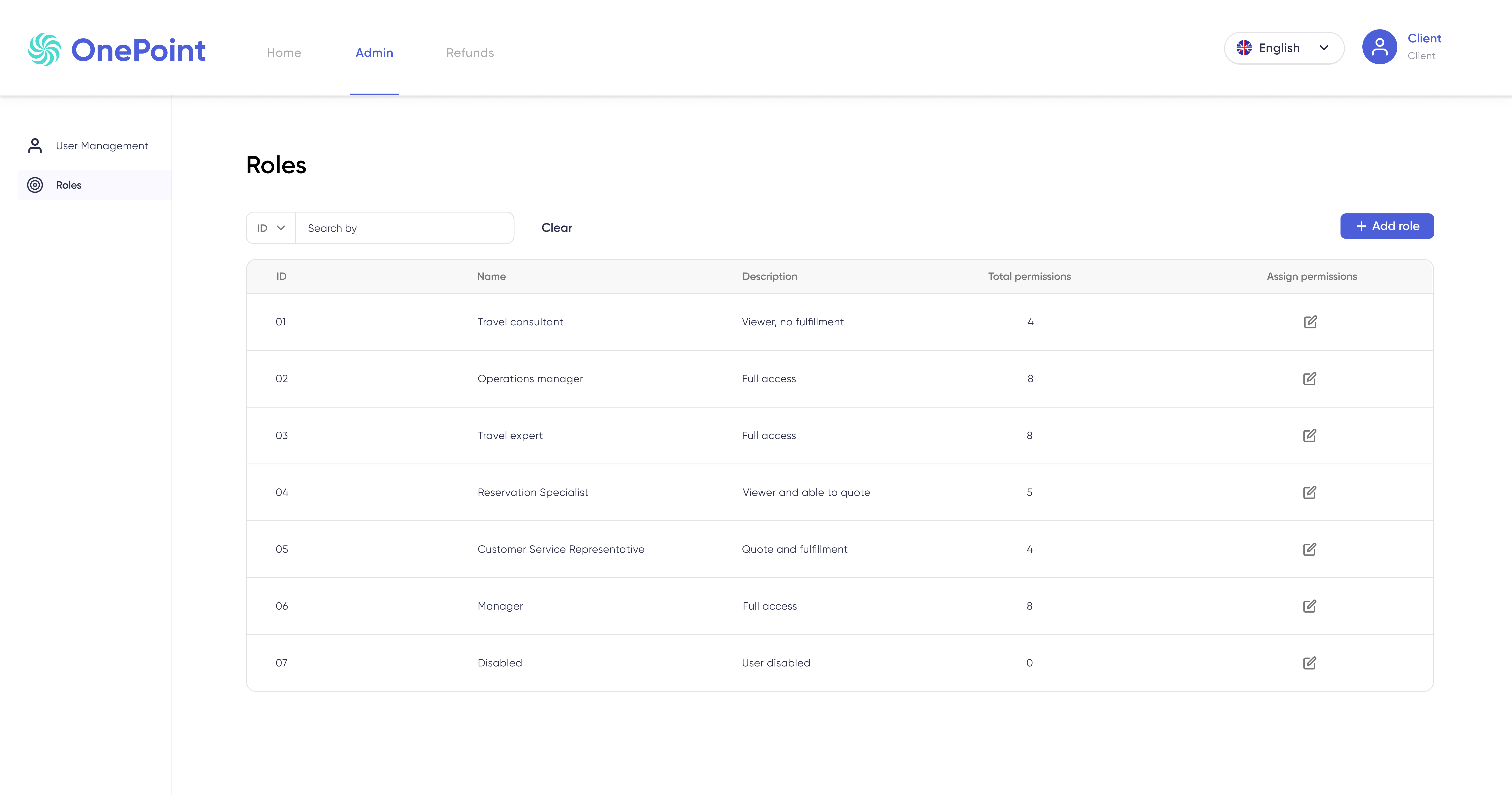
In the upper right corner, you will find a blue box labeled + Add role.
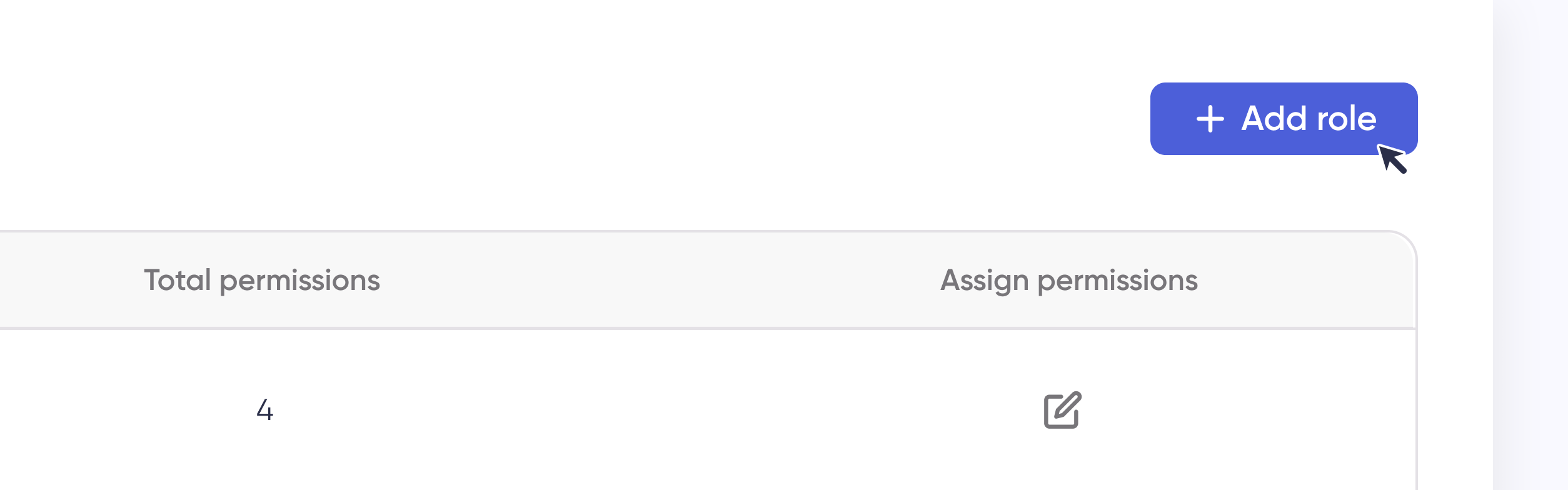
Selecting it will open a new window where you must enter the name of the role and description.
When you click Save, you will be taken back to the previous window where the newly created role will appear.
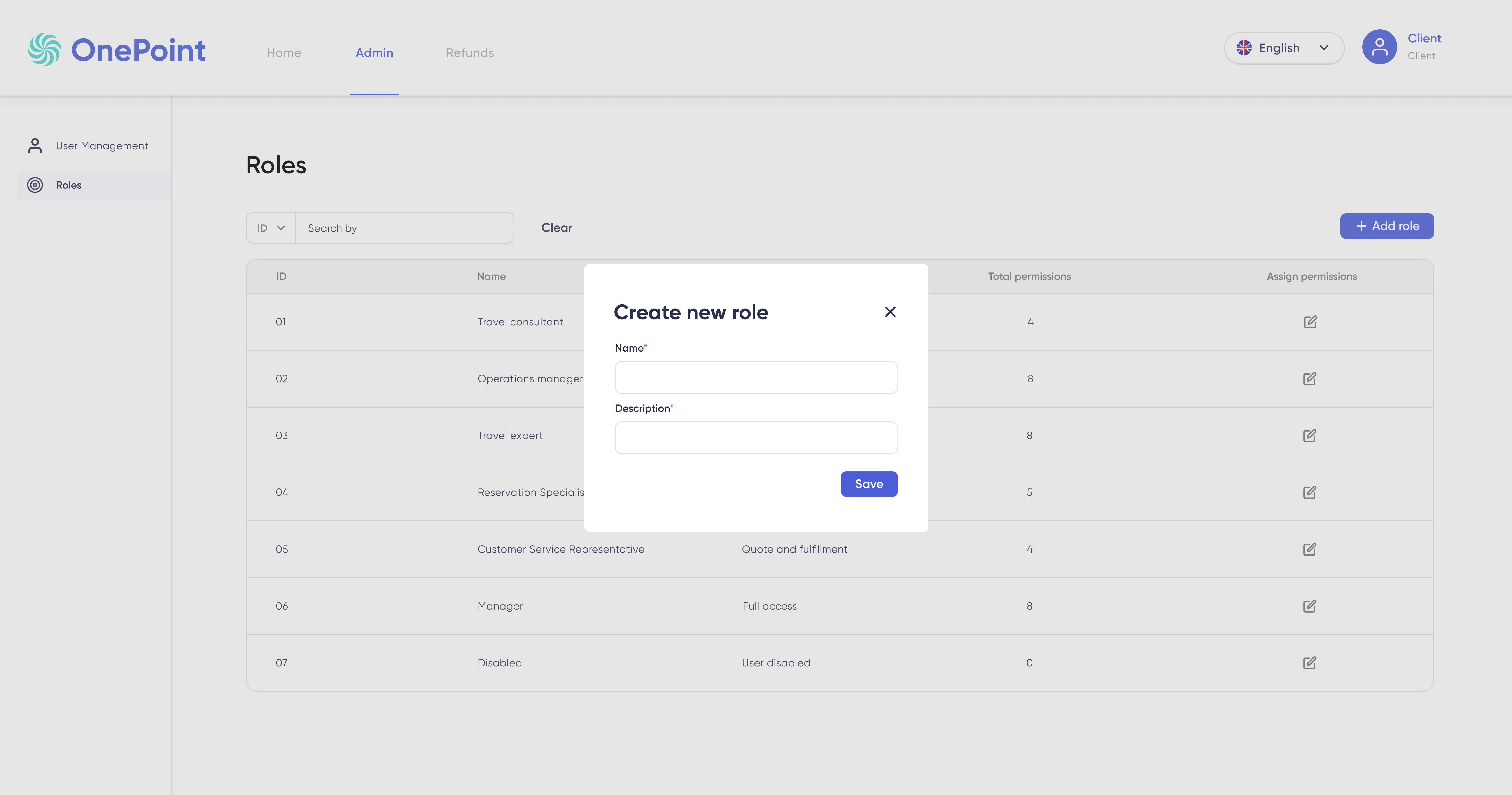
Click the Assign Permissions icon and assign permissions one by one according to the functionalities described above.
How to modify a role?
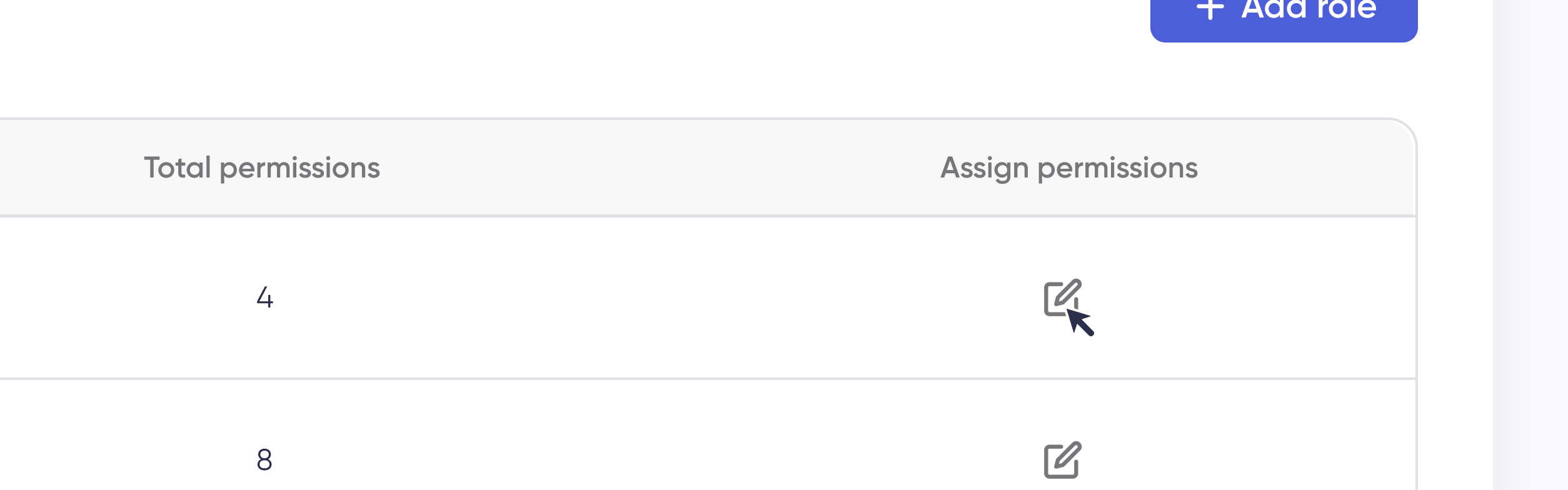
Editing an existing role is done in the side panel that appears when you click on Assign permissions.
Check or uncheck the permissions as needed.
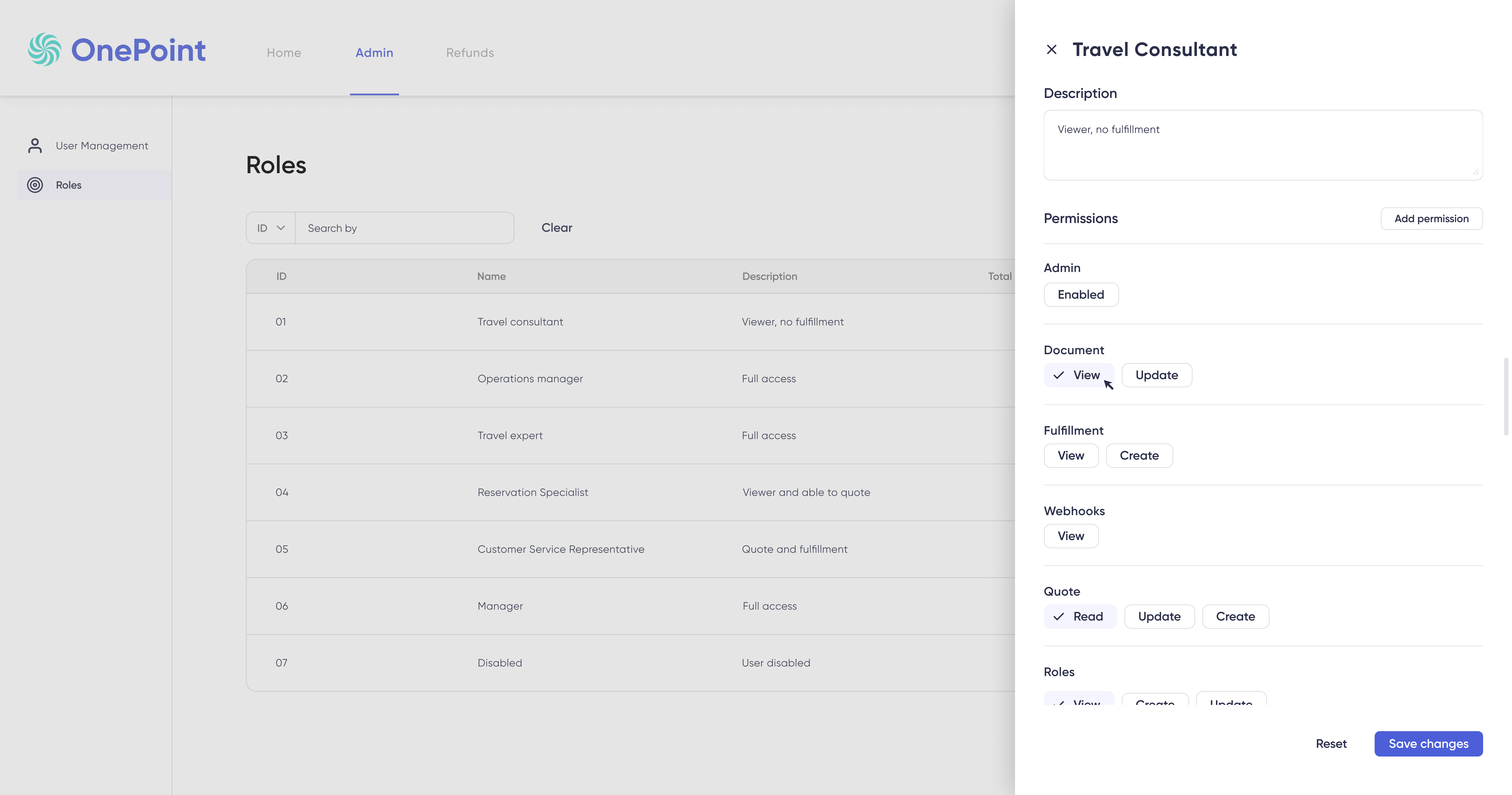
To modify a role, you must have the following permission enabled:
Roles.update
How to remove a role?
To delete a role, you must create a ticket for the support area.
However, you can assign the users of that role to a new or existing role that suits your needs.
How to request a new permission?
Permission management for roles is limited to the features available at the time of creation and as indicated in this guide.
If a new permission is required, you must create a ticket in Zendesk so that our backend team can make the appropriate configuration.
Once implemented, it will be available to enable in existing and future roles.
Updated about 2 months ago